Expanding on a previous tip. Here are some methods for figuring out the value of a given character.
1) Using gf - place the character under a character and hit ga in normal mode to obtain it's ascii value.
2) Using g8 - same as above but applies to UTF-8 characters.
3) :set list - toggles displaying unprintable characters.
4) pipe into the shell command od -c
5) type the :ascii ex command to display a characters ascii value
6) use cat -vET filename
Friday, December 12, 2008


Setting the Filetype
Vim normally sets the current filetype automatically and very accurately at that. In some cases though, such as when you're starting a file from scratch, it doesn't know the filetype. In these cases, you can set the filetype manually.
:set filetype=perl
:set filetype=php
:set filetype=python
etc...
:set filetype=perl
:set filetype=php
:set filetype=python
etc...
Thursday, December 11, 2008
Ubuntu: Downgrading X.org
First things first, if you use multiple monitors and you're thinking about upgrading to Ubuntu 8.10 (Intrepid), I would recommend holding off. A good number of users, myself included, have experienced a very annoying bug where the mouse spontaneously loses it's ability to click. The only way to regain mouse support is to kill X with ctrl-alt-backspace (ugh). I've been able to faithfully reproduce the bug by doing the following:
* Enable Xinerama in xorg.conf
* Open firefox fullscreen on both monitors
* Rapidly move the mouse between monitors
It's worth noting that this bug has nothing to do with what window manager you're using. I've experienced it under Gnome, AwesomeWM, and Xmonad. The bad news is that even though a lot of people are complaining about it, the bug has not been fixed. As of right now, the only reliable method to regain workstation stability seems to be downgrading X.org back to the Hardy packages. To assist anyone who might be Google'ing this issue, here are the instructions for doing so.
Log into a text console as root and shut down X with '/etc/init.d/gdm stop'.
Add the following to your /etc/apt/sources.list:
deb http://us.archive.ubuntu.com/ubuntu hardy main
deb http://us.archive.ubuntu.com/ubuntu hardy-updates main
deb http://us.archive.ubuntu.com/ubuntu hardy-security main
Run apt-get update.
Purge all the packages you can by doing the following:
cd /var/lib/dpkg/info/
dpkg --purge `ls *xorg*.list | sed s/.list// `
Some of these will fail to purge due to dependency issues. That's OK. Continue with the instructions.
Reinstall the packages from the Hardy repo:
apt-get --reinstall install x11-common/hardy xorg/hardy xserver-xorg/hardy xserver-xorg-core/hardy xserver-xorg-input-kbd/hardy xserver-xorg-input-mouse/hardy
Note that if you're using a stock Ubuntu video driver such as the Matrox driver you will need to include it in the list as well (xserver-xorg-video-mga/hardy). I use the third-party Nvidia driver, so it wasn't necessary to include it in the list.
After this, you can start X with "/etc/init.d/gdm start" and hopefully login to a working desktop. The final step is to go into synaptic and lock the reinstalled packages to avoid the upgrade manager from nagging.
Thanks to Nelson for providing these instructions, which I've modified slightly for presentation here.
* Enable Xinerama in xorg.conf
* Open firefox fullscreen on both monitors
* Rapidly move the mouse between monitors
It's worth noting that this bug has nothing to do with what window manager you're using. I've experienced it under Gnome, AwesomeWM, and Xmonad. The bad news is that even though a lot of people are complaining about it, the bug has not been fixed. As of right now, the only reliable method to regain workstation stability seems to be downgrading X.org back to the Hardy packages. To assist anyone who might be Google'ing this issue, here are the instructions for doing so.
Log into a text console as root and shut down X with '/etc/init.d/gdm stop'.
Add the following to your /etc/apt/sources.list:
deb http://us.archive.ubuntu.com/ubuntu hardy main
deb http://us.archive.ubuntu.com/ubuntu hardy-updates main
deb http://us.archive.ubuntu.com/ubuntu hardy-security main
Run apt-get update.
Purge all the packages you can by doing the following:
cd /var/lib/dpkg/info/
dpkg --purge `ls *xorg*.list | sed s/.list// `
Some of these will fail to purge due to dependency issues. That's OK. Continue with the instructions.
Reinstall the packages from the Hardy repo:
apt-get --reinstall install x11-common/hardy xorg/hardy xserver-xorg/hardy xserver-xorg-core/hardy xserver-xorg-input-kbd/hardy xserver-xorg-input-mouse/hardy
Note that if you're using a stock Ubuntu video driver such as the Matrox driver you will need to include it in the list as well (xserver-xorg-video-mga/hardy). I use the third-party Nvidia driver, so it wasn't necessary to include it in the list.
After this, you can start X with "/etc/init.d/gdm start" and hopefully login to a working desktop. The final step is to go into synaptic and lock the reinstalled packages to avoid the upgrade manager from nagging.
Thanks to Nelson for providing these instructions, which I've modified slightly for presentation here.
Friday, December 5, 2008
PHP: Invoking a method with Map
Ever since I learned the basics of functional programming, I've been a fan of the map function. In the right context, it can be an elegant solution for array transformation. Of course, like anything, it can be misused. Using PHP's map, it's non-obvious how to make it invoke an instance method rather than a function. The following example illustrates how this can be accomplished.
class M
{
    function double($a) {
        return $a * 2;
    }
}

$m    = new M;
$list = array(1, 2, 3);
$list = array_map(array($m, 'double'), $list);
print_r($list);

Array
(
    [0] => 2
    [1] => 4
    [2] => 6
)
Tuesday, December 2, 2008
Find Dot Files
Sometimes I forget the name of a particular config file but know it's stored as a dot file in my home directory. The following one-liner will non-recursively display any regular file begining with a dot.
find . -maxdepth 1 -type f -name '.*'
Find does it again. ;-)
find . -maxdepth 1 -type f -name '.*'
Find does it again. ;-)
Right = Left
Here's a tip that's mostly for fun. Open up Vim and type :set rightleft.
This changes display orientation to right-to-left. This can be useful for editing Hebrew and Arabic or just for freaking people out.
This changes display orientation to right-to-left. This can be useful for editing Hebrew and Arabic or just for freaking people out.
Wednesday, November 26, 2008
AwesomeWM
I've used a lot of window managers and desktop environments over the years (Gnome, KDE, Window Maker, Blackbox, Fluxbox, Enlightenment, XFCE, etc...). The last few years, I've lost a lot of motivation to experiment and stuck with the OS default (Gnome/Metacity in my case). Recently though, I've been increasingly trying to avoid ever touching the mouse. This is partially due to wrist issues and partially just to try and be more efficient. The quest for a mouse free lifestyle lead me to find the aptly named Awesome Window Manager.
If you're like me and have used many window manager, you're probably groaning right now and saying, "what makes Awesome any different from my current window manager?" Well, quite a few things actually. For one, Awesome is a tiling window manager. This means that if you open three terminal windows on the same screen, the WM will neatly organize them on the screen in an intelligent fashion. If you don't like the tile layout, you can switch layouts with a keystroke. If you want a certain application to fall outside of the default tiled layout, you can set it to float, and it will behave like it would in any other window manager.
While tiling is nice, it's not the only thing that makes Awesome unique. Awesome also avoids the traditional concept of virtual desktops or workspaces in favor of a tagging mechanism. Tags allow you to assign applications to logical groups in which they will appear together. An application can be bound to any number of tags. Even better, tags allow you to assign rules to newly opened applications, so I can say, "Firefox will open on the `Firefox' tab in floating mode on my 2nd monitor". You can also assign a default layout and number of columns to a given tab for tiling. Last but not least, each monitor can have it's own tagset giving you the equivalent of an independent session per monitor.
This is all good and well, but what does it have to do with getting around with the keyboard? Well, quite a lot actually. Awesome allows you to setup keybindings to navigate between tabs, send applications to a given tab, switch between applications on a given tab, resize windows, rotate windows within the tileset, jump between monitors, etc. All this is done inside of your awesomerc file, and the syntax is very straightforward. In my custom configuration, I've setup Awesome to respect keybindings very similar to Vim, so I can jump between monitors and windows using a combination of my meta key (windows key), a modifier (alt), and H, J, K, and L. As a bonus, it also happens to be extremely fast with performance in the same class as fluxbox and it's cousins.
A final feature that I've come to absolutely love is it's widget support. There's a user configurable statusbar that by default contains your current tagset listing and a small layout diagram. The rest of the statusbar is essentially open for whatever you want to add. All an application has to do to update the statusbar is write to standard output, so I've constructed a series of shell scripts to show the current time, CPU usage, memory usage, active users, and active streams at Grooveshark. All of these are basically one-liners. Here's my clock for the sake of example:
In case I missed anything, here's the laundry list of features from the Awesome website.
* Very stable, fast, small and simple;
* Only window manager using asynchronous XCB library instead of the old synchronous Xlib: make awesome faster than any other window manager;
* Very well documented source code and API;
* No mouse needed: everything can be performed with keyboard;
* Real multihead support (XRandR, Xinerama or Zaphod mode);
* Implement many Freedesktop standards: EWMH, XDG Base Directory, XEmbed, System Tray;
* Some real transparency support (using Composite extension and xcompmgr);
* Doesn't distinguish between layers: there is no floating or tiled layer;
* Whether or not the clients of currently selected tag(s) are in tiled layout, you can rearrange them on the fly. Popup and fixed-size windows are automatically floating.
* Layout handling: automatically manage your windows placement according to the chosen policy for each tag;
* Use tags instead of workspaces: allow to place clients on several tags, and display several tags at the same time;
* A lot of Lua extensions to add features: dynamic tagging, widget feeding, tabs, …;
* D-Bus support;
* And more.
And of course a screenshot is worth a thousand words.

And Finally, The AwesomeWM Website.
[edit]
As requested, here's a copy of my awesomerc. Note that I'm using version 2.3.4.
If you're like me and have used many window manager, you're probably groaning right now and saying, "what makes Awesome any different from my current window manager?" Well, quite a few things actually. For one, Awesome is a tiling window manager. This means that if you open three terminal windows on the same screen, the WM will neatly organize them on the screen in an intelligent fashion. If you don't like the tile layout, you can switch layouts with a keystroke. If you want a certain application to fall outside of the default tiled layout, you can set it to float, and it will behave like it would in any other window manager.
While tiling is nice, it's not the only thing that makes Awesome unique. Awesome also avoids the traditional concept of virtual desktops or workspaces in favor of a tagging mechanism. Tags allow you to assign applications to logical groups in which they will appear together. An application can be bound to any number of tags. Even better, tags allow you to assign rules to newly opened applications, so I can say, "Firefox will open on the `Firefox' tab in floating mode on my 2nd monitor". You can also assign a default layout and number of columns to a given tab for tiling. Last but not least, each monitor can have it's own tagset giving you the equivalent of an independent session per monitor.
This is all good and well, but what does it have to do with getting around with the keyboard? Well, quite a lot actually. Awesome allows you to setup keybindings to navigate between tabs, send applications to a given tab, switch between applications on a given tab, resize windows, rotate windows within the tileset, jump between monitors, etc. All this is done inside of your awesomerc file, and the syntax is very straightforward. In my custom configuration, I've setup Awesome to respect keybindings very similar to Vim, so I can jump between monitors and windows using a combination of my meta key (windows key), a modifier (alt), and H, J, K, and L. As a bonus, it also happens to be extremely fast with performance in the same class as fluxbox and it's cousins.
A final feature that I've come to absolutely love is it's widget support. There's a user configurable statusbar that by default contains your current tagset listing and a small layout diagram. The rest of the statusbar is essentially open for whatever you want to add. All an application has to do to update the statusbar is write to standard output, so I've constructed a series of shell scripts to show the current time, CPU usage, memory usage, active users, and active streams at Grooveshark. All of these are basically one-liners. Here's my clock for the sake of example:
#!/bin/sh
while true
do
    echo "0 widget_tell mystatusbar clock text " \
         "`date +"%A %B %d, %Y %l:%M %p"`" | awesome-client
    sleep 1
done
In case I missed anything, here's the laundry list of features from the Awesome website.
* Very stable, fast, small and simple;
* Only window manager using asynchronous XCB library instead of the old synchronous Xlib: make awesome faster than any other window manager;
* Very well documented source code and API;
* No mouse needed: everything can be performed with keyboard;
* Real multihead support (XRandR, Xinerama or Zaphod mode);
* Implement many Freedesktop standards: EWMH, XDG Base Directory, XEmbed, System Tray;
* Some real transparency support (using Composite extension and xcompmgr);
* Doesn't distinguish between layers: there is no floating or tiled layer;
* Whether or not the clients of currently selected tag(s) are in tiled layout, you can rearrange them on the fly. Popup and fixed-size windows are automatically floating.
* Layout handling: automatically manage your windows placement according to the chosen policy for each tag;
* Use tags instead of workspaces: allow to place clients on several tags, and display several tags at the same time;
* A lot of Lua extensions to add features: dynamic tagging, widget feeding, tabs, …;
* D-Bus support;
* And more.
And of course a screenshot is worth a thousand words.
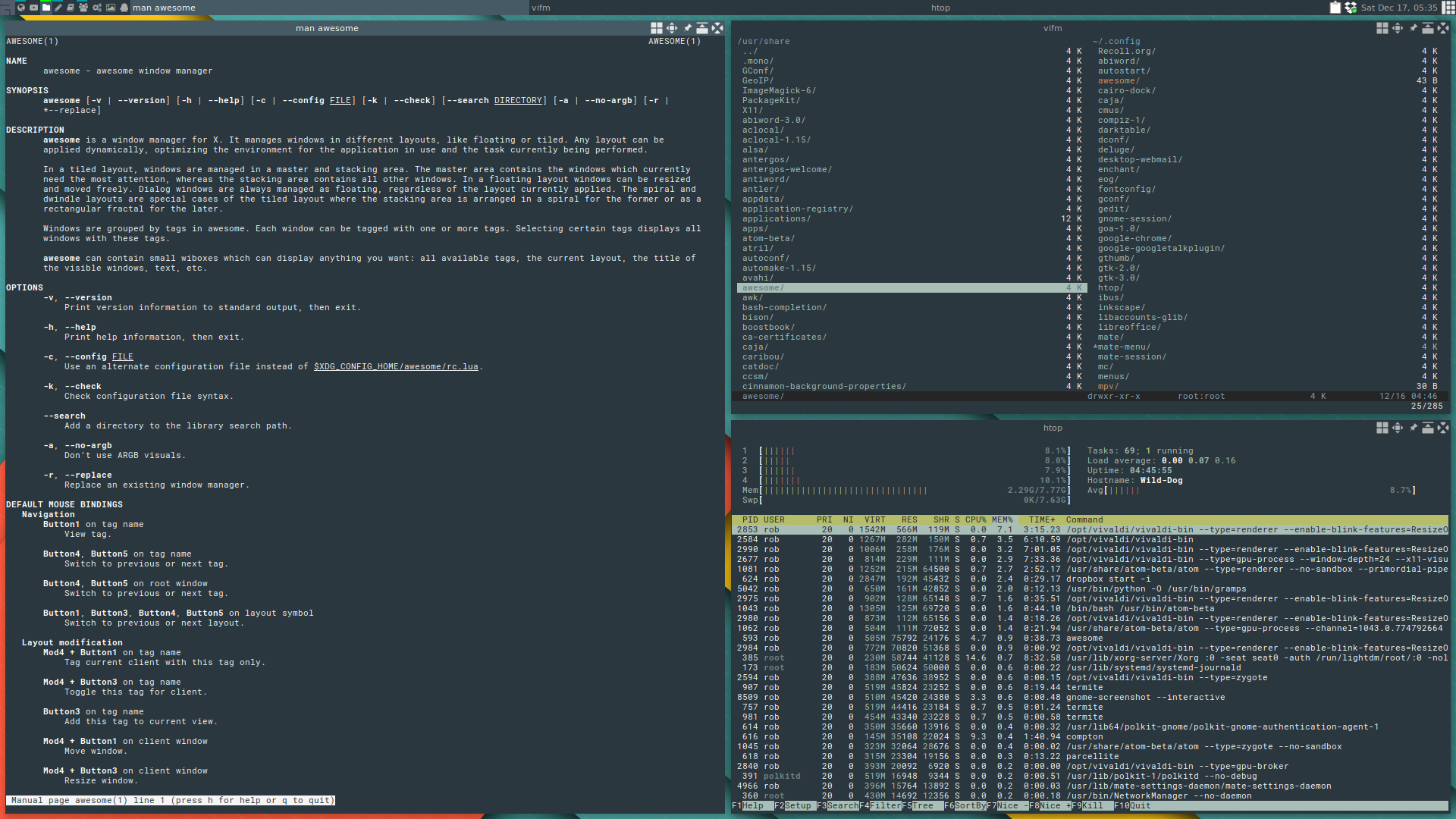
And Finally, The AwesomeWM Website.
[edit]
As requested, here's a copy of my awesomerc. Note that I'm using version 2.3.4.
Subscribe to:
Posts (Atom)

 Posts
Posts

